
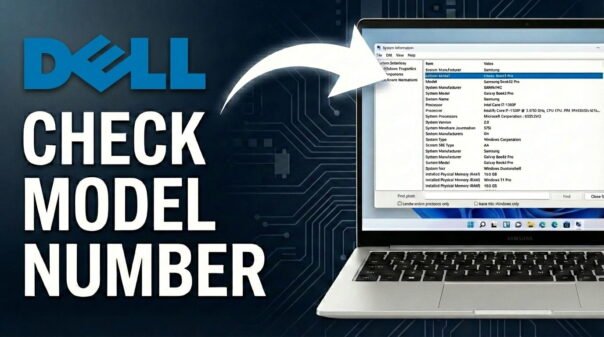
What Model is my Dell Laptop [ 3 Easy Methods ]

Forgetting your Dell laptop’s exact model name is common, especially when you need it for driver updates, warranty checks, or troubleshooting. Many Dell laptops appear similar, so locating that precise model number is often the first step for getting proper support or parts.

Regardless of whether you use Windows 10 or Windows 11, there are several simple ways to quickly identify your Dell laptop’s model. You don’t need advanced tech knowledge. We’ll show you three easy methods to find this important detail without any hassle.

This article will guide you through simple steps, from inspecting the physical device to using built-in Windows tools and Dell’s utilities. You’ll confidently identify your Dell laptop model in no time.

1) Find Your Dell Laptop Model on the Exterior or Packaging

One of the fastest ways to find your Dell laptop’s model information is by looking directly at the device. Dell frequently places this key data in easy-to-find spots.

Start by closing your laptop and gently turning it over. Search for a sticker or a printed label on the bottom panel. This label usually shows the model name, service tag, and sometimes the express service code.

Occasionally, the model name may also appear on the palm rest near the keyboard or on the screen bezel. These spots are less common, but check them if the bottom sticker is gone or unreadable.

If you kept the original box, the model number and service tag are nearly always printed on a label on the packaging. This offers a dependable source of information if you still have it.

2) Find Your Dell Laptop Model with Built-in Windows Tools

Your Windows operating system contains details about your computer’s hardware, including the exact Dell model. You can access this information using tools already installed on your system.

There are two simple ways to do this.

Find Dell Laptop Model Using System Information (msinfo32)

The System Information utility gives a full overview of your computer’s hardware and software. It’s a very dependable way to find your Dell laptop model.

To open System Information, press the Windows key + R on your keyboard. This opens the Run dialog box. Type “msinfo32” (without quotes) into the box, then press Enter or click OK.

When the System Information window appears, find the “System Model” entry. It is located in the right-hand pane under “System Summary.” This line shows your Dell laptop’s model number, for example, “Latitude 7420” or “XPS 15 9510.”

Find Dell Laptop Model Using Command Prompt

If you prefer a command-line interface, Command Prompt provides a quick way to get specific system details. This method is very fast and efficient.

Search for “Command Prompt” in the Windows search bar and open the application. Alternatively, right-click the Start button, choose “Run,” type “cmd,” and press Enter.

In the Command Prompt window, type the command `wmic csproduct get name` and press Enter. The output will be a single line showing your Dell laptop’s exact model name, such as “Precision 5560” or “Inspiron 16 Plus 7610.”

3) Use Dell SupportAssist or the Dell Support Website to Find Your Model

Dell offers dedicated tools and online resources that simplify finding your laptop model and getting support. These methods are designed specifically for Dell devices.

Find Dell Laptop Model Using Dell SupportAssist

Many Dell laptops come with Dell SupportAssist already installed. This utility helps optimize your system and gives fast access to support information. If you have it, it’s one of the simplest ways to find your model.

Search for “SupportAssist” in the Windows search bar and open the application. On the main screen, or within a “System Information” section, you will immediately see your laptop’s model name, service tag, and other key details.

If SupportAssist is not installed, you can download it from the official Dell support website. It is a free tool useful for managing your Dell device.

Find Dell Laptop Model Using Your Service Tag on the Dell Support Website

Every Dell product has a unique Service Tag, a 7-character alphanumeric code. This tag is the most accurate identifier for your specific machine. You can find it using the physical inspection or system information methods described above.

Once you have your Service Tag, open your web browser and visit the official Dell Support website. Find the field labeled “Enter your Service Tag or Product ID” and type in your Service Tag.

After you enter the Service Tag, the website automatically detects and shows all specific information about your laptop. This includes its exact model name, original setup, warranty status, and available drivers and manuals. It’s the most thorough way to get details about your specific Dell model.

Frequently Asked Questions About Finding Your Dell Laptop Model

Why do I need to know my Dell laptop model?

Knowing your Dell laptop model is crucial for several reasons. It helps you download the correct drivers, troubleshoot specific problems, check your warranty, order compatible parts, or get accurate technical support.

What is a Dell Service Tag?

The Dell Service Tag is a unique 7-character alphanumeric code. Every Dell product receives one. It serves as a serial number, allowing Dell to identify the exact setup and history of your particular device.

Is the model number the same as the serial number?

No, they are distinct. The model number identifies the product line, such as “XPS 13” or “Latitude 7420.” The Service Tag (Dell’s equivalent of a serial number) identifies your specific unit within that model, including its unique build and components.

Can I find my Dell laptop model if it won’t turn on?

Yes, you can. If your Dell laptop won’t power on, you can still find the model number and Service Tag. Check the physical labels on the laptop’s bottom or on its original packaging.

You now have several dependable ways to find your Dell laptop’s model. Choose what works best for you: inspecting the device, using Windows’ built-in tools, or Dell’s support resources.

These simple methods help you quickly get the information you need for any task. This includes downloading the right software or checking warranty details. Pick the method you find most convenient.