
Knowing your Asus laptop model is essential, whether you need specific drivers, compatible replacement parts, or technical support. This key piece of information can save you time and hassle. Fortunately, your Asus laptop, running Windows, offers several simple ways to find this crucial detail.
You don’t need to be a tech expert to find your laptop’s model number. This guide explains three straightforward methods, helping you quickly and confidently identify your specific Asus laptop model.
By the end of this guide, you will know how to find your Asus laptop model using built-in Windows tools and physical checks, making future maintenance or support tasks much easier.
1) How to Find Your Asus Laptop Model on the Physical Body
The fastest way to identify your Asus laptop model is usually to check the device’s physical body. Manufacturers often place this information on stickers or labels directly on the laptop. This method is reliable and does not require the laptop to be powered on.
Start by examining the underside of your Asus laptop. You will usually find a sticker or label there with various details. Look for text that specifically says “Model,” “Model Name,” “P/N” (Part Number), or something similar.
The model name often combines letters and numbers, such as “VivoBook 15 X512JA” or “ROG Zephyrus G14 GA401QM.”
On some older Asus laptops, this information might be inside the battery compartment if the battery is removable. If you have an older model, turn off your laptop, unplug it, and remove the battery. The label might be visible underneath.
If the sticker is worn out or missing, don’t worry. This can happen over time, especially with frequently used laptops. If that happens, the next methods will help you find the information using the Windows operating system.
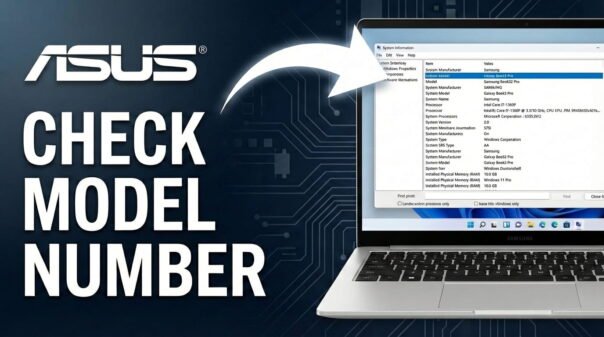
2) Find Your Asus Laptop Model Using Windows System Information
Windows includes a built-in utility called “System Information” that shows details about your computer’s hardware and software. This tool is ideal for finding your Asus laptop model directly from the operating system, even if the physical sticker is missing or worn.
To open System Information, press the Windows key + R simultaneously. This opens the ‘Run’ dialog box.
In the ‘Run’ dialog box, type “msinfo32” (without the quotes) into the text field. Then, press Enter or click “OK.” The System Information window will appear, which might take a few moments to load.
On the summary page, look for “System Model” or sometimes “BaseBoard Product” in the right pane. The value next to this entry is your Asus laptop’s specific model name.
For example, it might say “GL703GE” or “UX430UAR.”
This method works reliably on most Asus laptops with Windows 10 or Windows 11. It gets the model information directly from the computer’s BIOS or UEFI firmware, ensuring accuracy.
3) How to Find Your Asus Laptop Model with Command Prompt
For users comfortable with simple commands, the Command Prompt (CMD) offers a direct and often very reliable way to find your Asus laptop’s model number. This method is especially helpful if graphical tools like System Information are hard to navigate or give less specific details.
First, open the Command Prompt. Click the Start button, type “CMD” or “Command Prompt” into the search bar, and select the “Command Prompt” application. You typically don’t need administrator rights for this command, but using them won’t cause issues.
Once the Command Prompt window opens, you will see a black window with a blinking cursor. Type the following command exactly as shown:
wmic csproduct get name
After typing, press Enter. The system will process your request briefly. Below the command, you will see “Name” followed by your Asus laptop’s model, for example, “ZenBook UX392FN.”
This method queries Windows Management Instrumentation (WMI) to get product information, including the laptop’s model name. It’s a highly accurate way to retrieve details directly from the system’s core, making it a trusted approach.
FAQ
Why do I need to know my Asus laptop model?
Your Asus laptop model is crucial for finding correct drivers, software updates, compatible accessories or parts, and accurate technical support from Asus.
Is the serial number the same as the model number?
No, the serial number and model number are different. The model number identifies the product line or type (e.g., VivoBook 15 X512JA). The serial number is a unique identifier for your specific unit, used for warranty and tracking.
What if none of these methods work for my Asus laptop?
If these methods don’t work, check any original documentation, packaging, or receipts that came with your laptop. As a last resort, contact Asus customer support. Provide them with any identifying information you have, like a serial number, so they can look up your model.
Can the MyASUS app help find my model?
Yes, if you have the MyASUS application installed, it typically displays your laptop’s model name clearly within the app. This is a convenient option if the app is already set up.
Finding your Asus laptop model is a key step for device maintenance and ensuring you have the right information. Using one of the three simple methods above – checking the physical body, Windows System Information, or a Command Prompt command – you can quickly identify your specific laptop model.
Choose the method that feels most comfortable. Having this detail ready will make future support or upgrade tasks much smoother and more efficient. You now have the knowledge to confidently identify your Asus laptop model whenever needed.

Hi, I’m Michael Davis, the owner and writer of GadgetsFeed.com. This website is where I share my knowledge and passion for tech, laptops, and computers. I’m a software engineer by profession, and I enjoy testing and reviewing various gadgets and technologies. I started GadgetsFeed.com to help others find easy solutions for their laptop, computer, and tech problems.
