
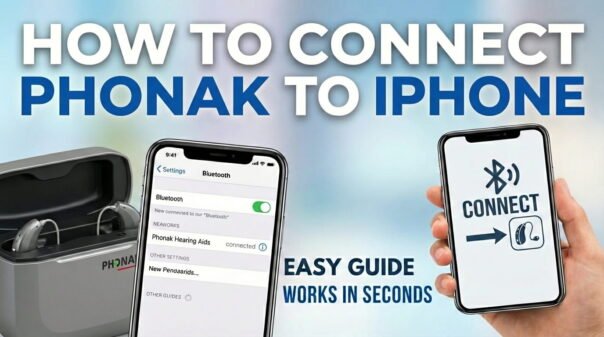
Connecting your Phonak hearing aids to your iPhone offers a new level of control, personalized sound, and direct audio streaming. Whether you’re pairing a new set of Phonak Lumity or Paradise hearing aids, or reconnecting an existing pair after an iOS 18 update, the process is straightforward once you know the steps.
This 2026 guide walks you through everything — from putting your hearing aids into pairing mode to using the myPhonak app for advanced control. If you’re also connecting other devices to your iPhone, check out our guide on how to connect Signia hearing aids to iPhone or how to connect Oticon hearing aids to iPhone for comparison.
1) Prepare Your Phonak Hearing Aids for Pairing
For your iPhone to discover your Phonak hearing aids, they must first be in “pairing mode.” This is done by restarting the hearing aids. The exact method depends on your battery type.
For Hearing Aids with Disposable Batteries
Open the battery door on each hearing aid and keep it open for about five seconds, then close it. This restarts the device and activates pairing mode for approximately three minutes.
For Hearing Aids with Rechargeable Batteries (Phonak Lumity, Paradise, etc.)
Remove the hearing aids from their charger. Press and hold the lower part of the rocker switch on each device for three to five seconds to power them off. Then press and hold again until the indicator light flashes — this confirms pairing mode is active. Alternatively, place the hearing aids back in the charger for five seconds, then remove them to trigger a restart into pairing mode.
2) Connect Phonak Hearing Aids via iPhone Accessibility Settings
Phonak hearing aids are certified “Made for iPhone” (MFi) devices, which means they pair through Settings > Accessibility > Hearing Devices — not the standard Bluetooth menu. This is a key distinction many users miss.
- Go to Settings and ensure Bluetooth is enabled.
- Tap Accessibility, then scroll to Hearing Devices.
- Your iPhone will scan for MFi hearing aids. Your Phonak devices should appear (e.g., “Phonak P-R” or “Phonak L”) within a few seconds.
- Tap the device name. A Bluetooth Pairing Request will pop up — tap Pair for each hearing aid (you may see two prompts for a pair).
- Once connected, both aids will show “Connected” under MFi Hearing Devices.
According to Phonak’s official support page, most MFi hearing aids support direct streaming from iPhone models running iOS 14.3 or later, and iOS 18 brought additional stability improvements for Bluetooth LE Audio connections.
3) Download and Set Up the myPhonak App
While your Phonak hearing aids can stream audio and handle calls without any app, the myPhonak app unlocks fine-tuned control over sound programs, volume, and remote care features. In 2026, the app also supports the newer Phonak Infinio range.
- Open the App Store and search for myPhonak. Make sure it’s published by Sonova AG.
- After installation, open the app and accept the terms. The app will automatically detect your paired hearing aids via Bluetooth.
- If the app can’t find your hearing aids, restart them (Section 1 steps) to re-enter pairing mode.
- Once connected, you can adjust programs, equalizer settings, check battery life, and request remote fine-tuning from your audiologist.
4) Using Your Connected Phonak Hearing Aids with iPhone
With pairing complete, here’s what you can do:
- Phone calls: Audio routes automatically to your hearing aids when a call comes in.
- Media streaming: Music, podcasts, and videos stream directly from any iPhone app.
- Volume control: Use iPhone side buttons, the myPhonak app, or triple-click the Side/Home button and tap “Hearing Devices” for a quick control panel.
- Siri: With supported models, you can activate Siri and hear responses through your hearing aids.
Troubleshooting Common Phonak–iPhone Connection Issues
If your Phonak hearing aids aren’t connecting, work through these steps:
- Low battery: Recharge or replace batteries. Low power often prevents pairing.
- Bluetooth toggle: Turn Bluetooth off and back on in Settings.
- Forget and re-pair: Go to Settings > Accessibility > Hearing Devices, tap your device name, scroll down and tap Forget This Device, then re-pair from scratch.
- iPhone restart: A simple reboot resolves many temporary Bluetooth issues.
- iOS update: Ensure your iPhone is running the latest iOS version. iOS 18.x includes patches for MFi hearing device connectivity.
- Distance: Keep the iPhone within 1 metre of your hearing aids during pairing.
For additional help, Apple’s official hearing device support page covers MFi compatibility requirements by iPhone model and iOS version.
Related Guides
If you’re exploring other hearing aid brands, we’ve covered the full process for all major manufacturers:
- How to Connect Signia Hearing Aids to iPhone
- How to Connect Oticon Hearing Aids to iPhone
- How to Connect Resound Hearing Aids to iPhone
- 7 Ways to Fix iPhone Touchscreen Not Working
FAQ
Why can’t my iPhone find my Phonak hearing aids?
Make sure your hearing aids have been restarted to enter pairing mode. Confirm Bluetooth is on and that no other device is currently paired to the hearing aids.
Do I need the myPhonak app to use my hearing aids with iPhone?
No. Basic call and audio streaming works through iOS Accessibility settings alone. The myPhonak app adds advanced features like program switching, remote adjustments, and battery monitoring.
My hearing aids keep disconnecting from my iPhone. What should I do?
Check battery levels, restart both devices, reduce Bluetooth interference from nearby devices, and keep your iPhone close to your hearing aids. Updating to the latest iOS version often resolves persistent disconnects.
Can I stream music from my iPhone to my Phonak hearing aids?
Yes. After pairing, all audio from your iPhone — music, podcasts, videos, and calls — streams directly through your Phonak hearing aids.
Are Phonak hearing aids compatible with all iPhone models?
Most modern Phonak MFi hearing aids work with iPhone models running iOS 14.3 or later. Check your specific model’s documentation or the Phonak website to confirm compatibility with your iPhone.
Connecting your Phonak hearing aids to your iPhone is a quick process that dramatically improves your listening experience. Follow the steps above, use the myPhonak app for full control, and refer to the troubleshooting section if you run into any issues. For other Apple-related tips, explore our Apple guides on GadgetsFeed.