
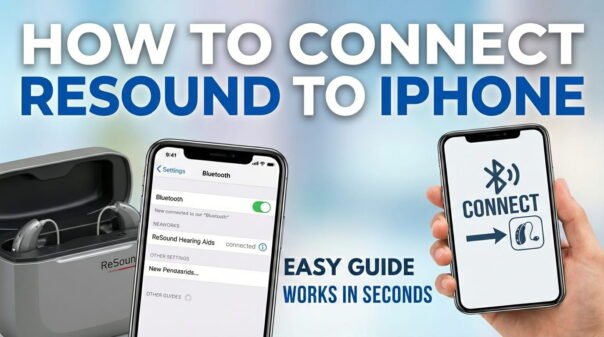
Connecting your ReSound hearing aids to your iPhone gives you direct audio streaming, hands-free calls, and full control through the ReSound Smart 3D app. Most modern ReSound hearing aids — including the ReSound NEXIA and Omnia — are “Made for iPhone” (MFi) certified, making pairing fast and reliable on iOS 18.
This guide covers the full process from pairing to app setup. Comparing brands? See our guides on connecting Phonak hearing aids to iPhone, Signia hearing aids to iPhone, and Oticon hearing aids to iPhone.
Understanding MFi: Why Resound Connects Through Accessibility
ReSound hearing aids use Apple’s Made for iPhone (MFi) protocol — a low-energy Bluetooth standard built specifically for hearing devices. Unlike regular headphones, MFi hearing aids pair through Settings > Accessibility > Hearing Devices, which provides more reliable streaming and better battery efficiency than standard Bluetooth.
Step 1: Put Your ReSound Hearing Aids into Pairing Mode
- Battery-powered models: Open and close the battery doors. This reboots the hearing aids and activates pairing mode for approximately 3 minutes.
- Rechargeable models (e.g., NEXIA, Omnia): Place them in the charger for a few seconds, then remove. They enter pairing mode automatically.
Step 2: Pair via iPhone Accessibility Settings
- Ensure Bluetooth is on in iPhone Settings.
- Go to Settings > Accessibility > Hearing Devices.
- Your ReSound hearing aids will appear under “MFi Hearing Devices” within seconds.
- Tap the device name. Accept the Bluetooth Pairing Request — tap Pair for each aid (left and right).
- Both will show “Connected” when successful.
According to ReSound’s official app page, the Smart 3D app supports direct iPhone streaming on iOS 14.3 and later, with full feature access on iOS 17 and 18.
Step 3: Set Up the ReSound Smart 3D App
The ReSound Smart 3D app (free on the App Store) unlocks the full potential of your hearing aids. It lets you adjust volume, switch listening programs, fine-tune bass and treble, check battery levels, and access remote audiologist support.
- Search for “ReSound Smart 3D” in the App Store and install it.
- Open the app and grant Bluetooth permissions.
- The app detects your already-paired hearing aids automatically.
- Follow the setup wizard to personalize your sound profile.
In 2026, the ReSound Smart 3D app includes updated AI-driven scene detection for the NEXIA range — it automatically adjusts programs based on your environment (indoor, restaurant, outdoors, etc.).
Daily Use Tips
- Calls: Audio routes automatically to your hearing aids when you answer.
- Media streaming: All iPhone audio streams directly to your hearing aids.
- Quick controls: Triple-click your iPhone’s Side or Home button > tap “Hearing Devices.”
- Battery: Charge your ReSound rechargeable models every night. Most provide a full day’s use on a single charge.
Troubleshooting ReSound–iPhone Connection Issues
- Not appearing: Restart hearing aids and iPhone. Ensure Bluetooth is on and aids are in pairing mode.
- Drops connection: Stay within 1 metre of your iPhone. Reduce nearby Bluetooth/Wi-Fi interference.
- Forget and re-pair: Settings > Accessibility > Hearing Devices > tap device > Forget This Device, then re-pair.
- Update iOS: Keep your iPhone on the latest iOS version for best compatibility.
- App not working: Close and reopen the app. Ensure it has Bluetooth permissions under Settings > Privacy & Security > Bluetooth.
For iPhone model compatibility details, refer to Apple’s official hearing device support page.
Related Guides
- How to Connect Phonak Hearing Aids to iPhone
- How to Connect Signia Hearing Aids to iPhone
- How to Connect Oticon Hearing Aids to iPhone
- 7 Ways to Fix iPhone Touchscreen Not Working
- 9 Ways to Fix Apple CarPlay Not Working
FAQ
Why won’t my iPhone find my ReSound hearing aids?
Ensure your hearing aids are in pairing mode, Bluetooth is enabled, and both devices are restarted. Check that your iOS version is up to date.
Do I need to keep Bluetooth on for ReSound hearing aids?
Yes. Even though ReSound uses the MFi protocol through Accessibility, Bluetooth must remain enabled on your iPhone for the connection to work.
Can I connect ReSound hearing aids to multiple iPhones?
Yes, but only one device can be actively connected at a time. Switch the active connection from the Hearing Devices menu on the iPhone you want to use.
How do I check if my ReSound hearing aids are connected?
Go to Settings > Accessibility > Hearing Devices. Your ReSound aids will show “Connected” when active. The ReSound Smart 3D app also displays connection status on its home screen.
How often should I charge rechargeable ReSound hearing aids?
Most rechargeable ReSound models provide a full day’s use on one charge. Charge them overnight to ensure they’re ready each morning.
With your ReSound hearing aids connected to your iPhone, you’ll enjoy seamless audio, hands-free calls, and a fully personalized sound experience through the Smart 3D app. For more Apple tips, browse our Apple guides on GadgetsFeed.