
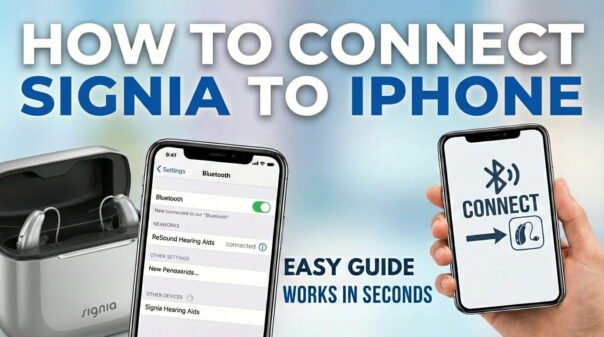
Connecting your Signia hearing aids to your iPhone gives you hands-free calls, direct audio streaming, and full control through the Signia app. Most modern Signia hearing aids — including the Signia Silk Charge&Go AX and Pure Charge&Go AX — are “Made for iPhone” (MFi) certified, making the pairing process fast and reliable on iOS 18.
This guide covers both the MFi pairing method and the Signia app setup. If you’re comparing hearing aid brands, also see our guides on connecting Phonak hearing aids to iPhone, Oticon hearing aids to iPhone, and Resound hearing aids to iPhone.
Step 1: Put Your Signia Hearing Aids into Pairing Mode
Before your iPhone can find your Signia hearing aids, they need to be in pairing mode — which is activated by restarting them.
- Disposable battery models: Open and close the battery doors. This reboots the device and activates pairing mode for about 3 minutes.
- Rechargeable models (e.g., Silk Charge&Go, Pure Charge&Go): Remove the hearing aids from their charging case. They automatically enter pairing mode when removed.
Step 2: Pair via iPhone Accessibility Settings (MFi)
Signia MFi hearing aids connect through Settings > Accessibility > Hearing Devices, not the standard Bluetooth menu. This ensures the most stable connection for streaming and calls.
- Make sure Bluetooth is enabled on your iPhone.
- Go to Settings > Accessibility > Hearing Devices.
- Your Signia hearing aids should appear under “MFi Hearing Devices” within a few seconds.
- Tap the device name. When the Bluetooth Pairing Request appears, tap Pair — you may see two prompts, one for each ear.
- Once both show “Connected”, the pairing is complete.
According to Signia’s official connectivity page, MFi streaming is supported on iPhone models running iOS 14.3 or later, with enhanced stability improvements in iOS 17 and 18.
Step 3: Set Up the Signia App for Advanced Control
The Signia App (available free on the App Store) offers far more than basic streaming. It lets you switch listening programs, adjust volume and balance, check battery levels, and even request remote fine-tuning from your audiologist.
- Search for “Signia App” in the App Store and install it (publisher: WS Audiology).
- Open the app and accept terms. Grant Bluetooth permissions when prompted.
- The app will detect your already-paired hearing aids automatically.
- Complete the setup wizard to configure your hearing profile and preferences.
In 2026, the Signia App supports the latest Signia Integrated Xperience (IX) platform, which includes real-time Own Voice Processing 2.0 — a significant upgrade for users in noisy environments.
Using Your Signia Hearing Aids with iPhone
- Calls: Audio routes automatically to your hearing aids when you answer a call.
- Media: All audio (music, podcasts, videos) streams directly once paired.
- Quick controls: Triple-click your iPhone’s Side or Home button, then tap “Hearing Devices” for instant volume and program access.
- Siri: Siri responses stream through your hearing aids on supported models.
Troubleshooting Signia–iPhone Connection Issues
- Not appearing: Restart your hearing aids and ensure they’re in pairing mode. Restart your iPhone. Check that Bluetooth is on.
- Drops connection: Stay within 1 metre of your iPhone. Reduce nearby Bluetooth/Wi-Fi interference.
- Forget and re-pair: Settings > Accessibility > Hearing Devices > tap device name > Forget This Device, then re-pair.
- Update iOS: iOS 18.x includes Bluetooth stability improvements. Always keep iOS up to date.
- Not MFi compatible: Older Signia models may need a StreamLine Mic accessory for iPhone connectivity. Check your model’s documentation.
For detailed compatibility information by iPhone model and iOS version, see Apple’s official hearing device accessibility page.
Related Guides
- How to Connect Phonak Hearing Aids to iPhone
- How to Connect Oticon Hearing Aids to iPhone
- How to Connect Resound Hearing Aids to iPhone
- 7 Ways to Fix iPhone Touchscreen Not Working
- 9 Ways to Fix Apple CarPlay Not Working
FAQ
How do I disconnect my Signia hearing aids from my iPhone?
Turn off your hearing aids or disable iPhone Bluetooth to temporarily disconnect. To permanently remove them, go to Settings > Accessibility > Hearing Devices, tap the device, and select “Forget This Device.”
Can I connect my Signia hearing aids to multiple iPhones?
Yes, Signia hearing aids can be paired with multiple devices, but they can only actively stream to one at a time. Whichever device initiates audio will take priority.
Do all Signia hearing aids work with iPhone?
Most modern Signia hearing aids are MFi certified and connect directly. Older models may require a StreamLine Mic accessory. Check your model’s spec sheet or consult your audiologist to confirm.
What is the Signia App used for?
The Signia App lets you adjust volume, switch listening programs, fine-tune sound balance, check battery levels, and access remote support — all from your iPhone. It works alongside the MFi connection, not instead of it.
With your Signia hearing aids and iPhone connected, you’ll enjoy seamless audio streaming, hands-free calls, and advanced personalization through the app. For more Apple tips and fixes, browse our Apple guides on GadgetsFeed.