

Setting up dual monitors on your Lenovo ThinkPad is straightforward. This guide covers both the docking station method and the USB dongle method.
The recommended method is to use a Lenovo docking station. Connect both monitors to the dock’s display ports, connect the dock to your ThinkPad, and configure the displays in Windows Display Settings.
What You Need
For a dual monitor setup with a docking station you need: two monitors, a Lenovo docking station, HDMI or DisplayPort cables, and your ThinkPad laptop.
A docking station is more reliable for dual monitors compared to a USB dongle. The USB dongle method works for basic office tasks but is not suitable for gaming or high definition video.
Lenovo ThinkPad Dual Monitor Setup with Docking Station
Step 1) Create the Connection
First check your Lenovo ThinkPad graphics card to confirm it supports a dual monitor setup. Then connect both monitors to the docking station using HDMI, DisplayPort, VGA, or DVI cables. Finally, connect the docking station to your ThinkPad.
Step 2) Configure Dual Monitors in Windows 10
Windows 10 usually detects external monitors automatically. If a monitor is not detected:
- Right-click anywhere on the desktop
- Select Display Settings
- Click Detect at the top of the page
Step 3) Extend the Display Across Both Monitors
- Right-click on the desktop and select Display Settings
- Scroll down to Multiple Displays
- Select Extend these displays from the dropdown
Step 4) Change the Display Order
To rearrange your monitors, right-click the desktop and open Display Settings. Left-click a monitor icon and drag it to the position that matches your physical setup.
Lenovo ThinkPad Dual Monitor Setup Without Docking Station
You can set up dual monitors without a docking station using a USB display adapter (dongle). This works for basic office work but is not suitable for gaming or high definition video due to the lower refresh rate.
- Connect the monitors to the USB display adapter
- Plug the USB adapter into your ThinkPad
- Right-click the desktop, select Display Settings, and click Detect
Lenovo Dual Monitor Not Working?
If your dual monitor is still not working after setup, check these first:
- Make sure all cables are firmly connected
- Check the monitor power cable
- Test with a different cable or monitor if available
If hardware is confirmed working, fix the refresh rate by following these steps:
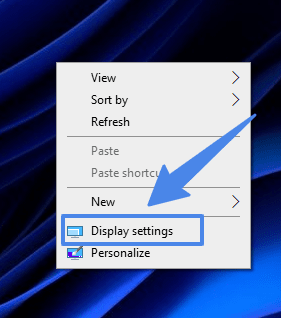
Step 1: Right-click on the desktop and select Display Settings.
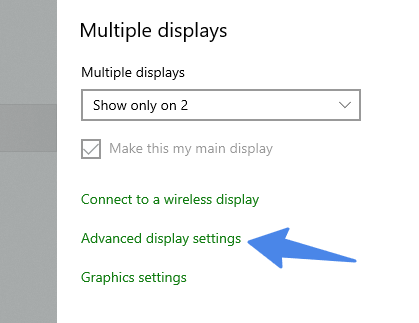
Step 2: Scroll down and click Advanced Display Settings.
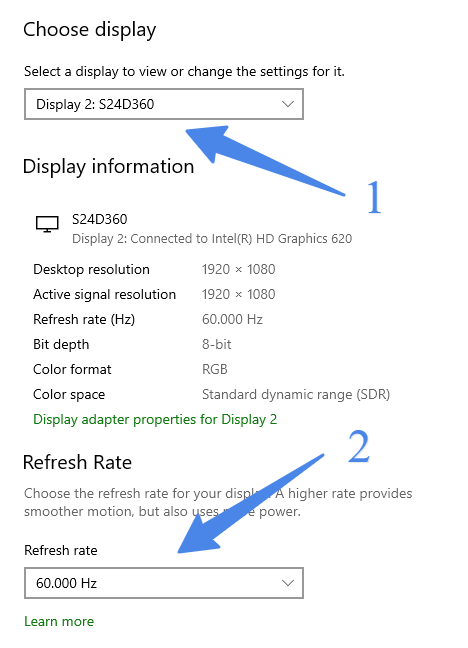
Step 3: Select your display and change the refresh rate to one that is supported by your monitor.
FAQ (Lenovo ThinkPad Dual Monitor Setup)
Can Lenovo ThinkPad support 2 external monitors?
Yes. You can use one external monitor and your laptop screen as the second display. You can also connect two monitors using one HDMI port and one USB-C port, though the USB-C port may require a universal adapter.
Why is my ThinkPad not detecting the second monitor?
Make sure all cables are firmly connected. Open Display Settings and click Detect. If still not detected, try a different cable or test the monitor with another laptop to rule out hardware faults.
How many monitors can I connect to my ThinkPad?
It depends on the model. The Lenovo ThinkPad X1 Extreme (2nd gen) can support up to four monitors using 2 Thunderbolt 3 ports and an HDMI 2.0 port including the built-in display. Check your specific model’s specs.
Can ThinkPad T14 support 2 monitors?
Yes. The ThinkPad T14 has two USB-C ports, both with HDMI output. You can connect one monitor to each USB-C port, or combine a USB-C port and the HDMI port for two external monitors.
Conclusion
Setting up dual monitors on your Lenovo ThinkPad is simple with a docking station. Connect the monitors, connect the dock to the laptop, and configure the displays in Windows Display Settings using Extend these displays.
You May Also Like:
How to Connect 3 Monitors to a Lenovo Laptop Docking Station
How to Connect 3 Monitors to a Laptop Docking Station
Are ThinkPad Laptops Good for Gaming?
What Model is My Lenovo Laptop?