
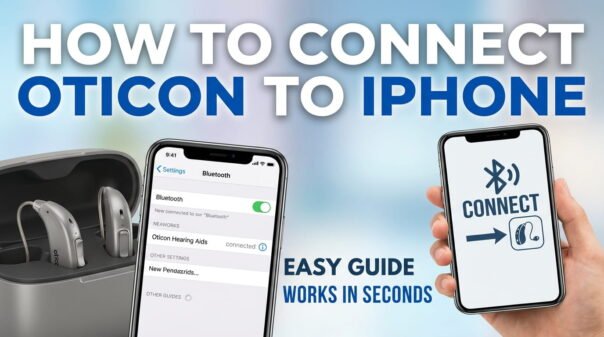
Connecting your Oticon hearing aids to your iPhone offers many convenient features. You can stream calls, listen to music directly, and control settings using an app. This integration significantly improves the daily experience with your hearing devices, which is a common goal for many users.
If you need to connect your Oticon hearing aids to your Apple iPhone for audio streaming or to use the Oticon ON app, this guide will help. The good news is that connecting them is a simple process, thanks to Apple’s Made for iPhone (MFi) hearing aid technology.
There are a few easy ways to set up this connection. Once established, your hearing aids will often reconnect automatically. This guide walks you through each step, helping you easily connect your Oticon hearing aids to your iPhone and get the most from their smart capabilities.
1) Connect Oticon Hearing Aids Using Made for iPhone (MFi) Pairing
The main way to connect your Oticon hearing aids to your iPhone is through Apple’s Made for iPhone (MFi) technology. This special connection allows your iPhone to directly recognize and control your hearing aids, enabling audio streaming and access to various settings.
This method uses Bluetooth, but your iPhone’s Accessibility settings manage it, not the general Bluetooth menu. It’s a reliable connection designed for consistent use.
Step-by-Step MFi Pairing
Follow these instructions carefully for a successful first connection between your Oticon hearing aids and your iPhone.
Prepare your iPhone:
Confirm your iPhone’s Wi-Fi and Bluetooth are both turned on. Bluetooth is essential for pairing, and keeping Wi-Fi active also supports app functions later on.
Make sure your iPhone has a good battery charge. This prevents interruptions during the pairing process.
Prepare your Oticon Hearing Aids:
If your hearing aids use disposable batteries, ensure they are fresh. For rechargeable models, make sure they are fully charged.
Turn your hearing aids completely off. If they have disposable batteries, open the battery doors. For rechargeable models, press and hold a button until they power down, or place them in their charger and then remove them.
Now, turn your hearing aids back on. If they use disposable batteries, close the battery doors. For rechargeable models, follow their specific power-on procedure, which often involves a press and hold.
Once powered on, your hearing aids will enter pairing mode for a few minutes. This is the critical time for your iPhone to find them.
Initiate Pairing on your iPhone:
On your iPhone, open the Settings app. This icon looks like a gray gear and is usually on your home screen.
Scroll down and tap “Accessibility.” This menu contains options for users with different needs, including hearing devices.
Within the Accessibility menu, scroll to the “Hearing” section and tap “Hearing Devices.”
Your iPhone will now search for available Made for iPhone hearing aids. Because you just powered your Oticon hearing aids on, they should be in pairing mode and ready to be found.
After a moment, you should see your Oticon hearing aids listed under “MFi Hearing Devices.” They might appear as “Oticon [Model Name]” or a generic “Hearing Aids.”
Complete the Connection:
Tap on your Oticon hearing aids when they appear in the list. This action will prompt a pairing request.
You will likely see one or two “Bluetooth Pairing Request” pop-ups, one for each hearing aid (left and right). Tap “Pair” for each request to confirm the connection.
Once paired, your Oticon hearing aids will show as “Connected” in the Hearing Devices menu. You should also see options to adjust volume, stream audio, and check battery levels.
At this point, your Oticon hearing aids are successfully connected to your iPhone for basic functions. This includes streaming audio from calls, music, and videos.
2) Optimize Your Experience with the Oticon ON App
While the MFi connection provides essential functions, the Oticon ON app offers a new level of control and personalization. This free application lets you fine-tune settings, switch programs, and access more features directly from your iPhone.
It is important to remember that the Oticon ON app requires your hearing aids to be already paired through the MFi process described earlier. The app uses this existing connection to communicate with your devices.
Step-by-Step Oticon ON App Connection
After completing the MFi pairing, you can connect your hearing aids to the Oticon ON app.
Download the Oticon ON App:
Open the App Store on your iPhone. This icon is blue with a white “A” inside.
Use the search bar at the bottom to find “Oticon ON.”
Find the official Oticon ON app and tap “Get” to download and install it. You may need to authenticate using Face ID, Touch ID, or your Apple ID password.
Launch and Connect the App:
Once the app is installed, tap its icon on your home screen to open it.
The app will guide you through an initial setup. It will likely ask for Bluetooth access permission, which you should allow.
The Oticon ON app will then search for your already-paired Oticon hearing aids. Since they are already connected via MFi, the app should quickly find them.
Follow any on-screen instructions to confirm the connection within the app. You might see a message confirming your hearing aids are found and ready to use.
Once connected, you will see the app’s dashboard. From here, you can adjust volume, change listening programs, and explore other advanced features specific to your Oticon model.
3) Managing Your Oticon Hearing Aid Connection
Once your Oticon hearing aids are paired with your iPhone, you have several options to manage their connection. These settings help ensure optimal performance and allow you to control audio routing and address minor issues.
Accessing Control Center for Quick Adjustments:
You can quickly access hearing aid controls directly from your iPhone’s Control Center. Swipe down from the top-right corner on iPhones with Face ID, or swipe up from the bottom edge on iPhones with a Home button.
Look for the Hearing icon, which is an ear symbol. If it’s not visible, you can add it via Settings > Control Center.
Tapping the Hearing icon provides quick access to volume adjustments, program changes, and Live Listen features.
Audio Routing Options:
Your iPhone lets you decide where audio from calls, media, and alerts should play. This is useful if you want calls to stream to your hearing aids but prefer music through your iPhone speakers.
Go to Settings > Accessibility > Hearing Devices > Audio Routing. Here, you can choose if calls and media audio should automatically go to your hearing aids or stay on your iPhone speakers.
Forgetting a Device:
If you need to reset the connection or pair your hearing aids with a new iPhone, you might need to “forget” the device. This action completely removes the pairing information.
Go to Settings > Accessibility > Hearing Devices. Tap on your connected Oticon hearing aids.
Scroll down and tap “Forget This Device.” Confirm your choice when prompted. You will then need to re-pair them using the MFi process from Section 1.
4) Troubleshooting Common Oticon iPhone Connectivity Issues
Connecting Oticon hearing aids to an iPhone is usually smooth, but issues can sometimes occur. If your hearing aids aren’t connecting, are losing connection, or aren’t streaming audio correctly, these steps can help you fix the problem.
Check Hearing Aid Power and Battery:
Make sure your hearing aids are powered on and have enough battery life. Low battery is a frequent cause of intermittent connections or failure to pair.
For rechargeable models, ensure they are fully charged. For disposable batteries, try replacing them with fresh ones.
Toggle Bluetooth On and Off:
Simply resetting the Bluetooth connection on your iPhone can sometimes resolve minor glitches.
Open your iPhone’s Settings, then tap “Bluetooth.” Toggle the switch off, wait a few seconds, then toggle it back on.
Restart Your iPhone and Hearing Aids:
A simple restart often clears temporary software bugs or connection problems on both devices.
Turn your iPhone off completely, wait about 30 seconds, then turn it back on. Similarly, power cycle your Oticon hearing aids by turning them off and then on again.
Re-initiate Pairing Mode:
If your hearing aids do not appear in the MFi Hearing Devices list, they might have left pairing mode. Repeat the step of turning your hearing aids off and then immediately back on to re-enter pairing mode.
Forget and Re-pair Your Hearing Aids:
If the connection remains problematic, it’s often best to start fresh. This means removing the current pairing and setting it up again.
Go to Settings > Accessibility > Hearing Devices, tap on your Oticon hearing aids, and select “Forget This Device.”
Then, follow the complete MFi pairing process from Section 1 to re-establish the connection.
Update iOS and Oticon ON App:
Ensure your iPhone is running the latest iOS version. Apple often releases updates that include bug fixes and improved compatibility with MFi devices.
Also, check the App Store for any available updates for the Oticon ON app. App updates frequently fix connectivity issues and boost performance.
Check for Obstructions:
While less common, physical obstructions or interference can sometimes affect Bluetooth signals. Keep your iPhone and hearing aids relatively close to each other. Avoid large metal objects or other strong signal emitters nearby.
Reset iPhone Network Settings (As a last resort):
This action resets all network-related settings, including Wi-Fi passwords and cellular settings. However, it can resolve deep-seated connectivity problems.
Go to Settings > General > Transfer or Reset iPhone > Reset > Reset Network Settings. You will need to re-enter Wi-Fi passwords afterward.
Contact Oticon Support or Your Audiologist:
If you have tried all the steps above and still have issues, it’s time to seek professional help. Your audiologist or Oticon customer support can provide specific troubleshooting for your hearing aid model. They can also identify potential hardware issues.
FAQ
Here are quick answers to some common questions about connecting Oticon hearing aids to an iPhone.
Do Oticon hearing aids use regular Bluetooth to connect to an iPhone?
Oticon hearing aids connect using a specialized Bluetooth Low Energy protocol called Made for iPhone (MFi) Hearing Devices. This allows a direct connection without needing an extra accessory.
Can I stream music and calls directly to my Oticon hearing aids from my iPhone?
Yes, once connected via MFi, you can stream audio from phone calls, music, podcasts, and other media directly to your Oticon hearing aids.
Why do I need the Oticon ON app if my hearing aids are already paired?
MFi pairing provides basic streaming and control. The Oticon ON app offers advanced features, such as fine-tuning sound programs, adjusting noise reduction, checking battery status, and accessing remote care.
My iPhone isn’t finding my Oticon hearing aids. What should I do?
Ensure your hearing aids are turned off and then immediately back on to enter pairing mode. Also, check that your iPhone’s Bluetooth is on and you are looking in Settings > Accessibility > Hearing Devices.
Will connecting my hearing aids to my iPhone drain their battery faster?
Yes, streaming audio and actively using the connection will use more battery from both your hearing aids and your iPhone. This is more than just using the hearing aids passively.
Can I connect my Oticon hearing aids to multiple iPhones?
Oticon hearing aids can technically pair with multiple MFi devices. However, they will only actively connect and stream from one device at a time. You will need to manually switch the active connection if you use more than one iPhone or iPad.
You now know how to connect your Oticon hearing aids to your iPhone, covering both initial pairing and using the Oticon ON app. This guide also provides several effective troubleshooting steps for any issues that might come up.
Connecting your devices opens up many possibilities. You can enjoy your iPhone’s audio directly through your hearing aids and personalize your listening experience. Go ahead and try these methods to get the most from your Oticon hearing aids and your Apple iPhone.

Hi, I’m Michael Davis, the owner and writer of GadgetsFeed.com. This website is where I share my knowledge and passion for tech, laptops, and computers. I’m a software engineer by profession, and I enjoy testing and reviewing various gadgets and technologies. I started GadgetsFeed.com to help others find easy solutions for their laptop, computer, and tech problems.